
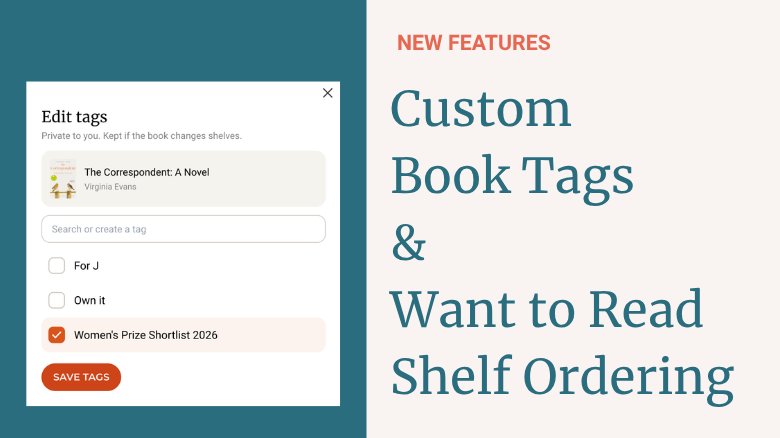
Your Want to Read shelf has 100 books on it. Some you already own, a handful are for that reading challenge to read this year's Women's Prize shortlist, others are for you to beef up on your parenting skills. They all sit in one long list, and the book you actually want to read next is buried somewhere near the bottom.
We're excited to introduce two new feature that will help you bring order to the chaos of your bookshelf.
Custom Shelf Tags
Custom shelf tags let you label the books on any of your shelves with your own categories. Make a tag for a genre, "Books I own," "2026 reading challenge," "NYT best of the century," or whatever system makes sense to you.
- Give a book as many tags as you like. Tags stay with a book when it moves shelves, so a book tagged "Book club pick" on your Want to Read shelf keeps that tag after you finish it.
- Filter any shelf by one or more tags. Pick a few and you'll see every book that has any of them.
- Your tags are private. Other members who visit your profile won't see them.
How to Use Custom Shelf Tags
On the web
- Click your name in the top right corner, choose My profile, and open any shelf from the menu on the left, like Books I Want to Read.
- Under a book's title and author, click Add tags. Check any tags you've already made, or type a new name and click Create "[your tag]". Then click Save tags.
- To change a book's tags later, click Edit tags in the same spot.
- To filter a shelf, click Filter next to the search box, check one or more tags, and click Apply. Clicking a tag on any book also filters the shelf to that tag.
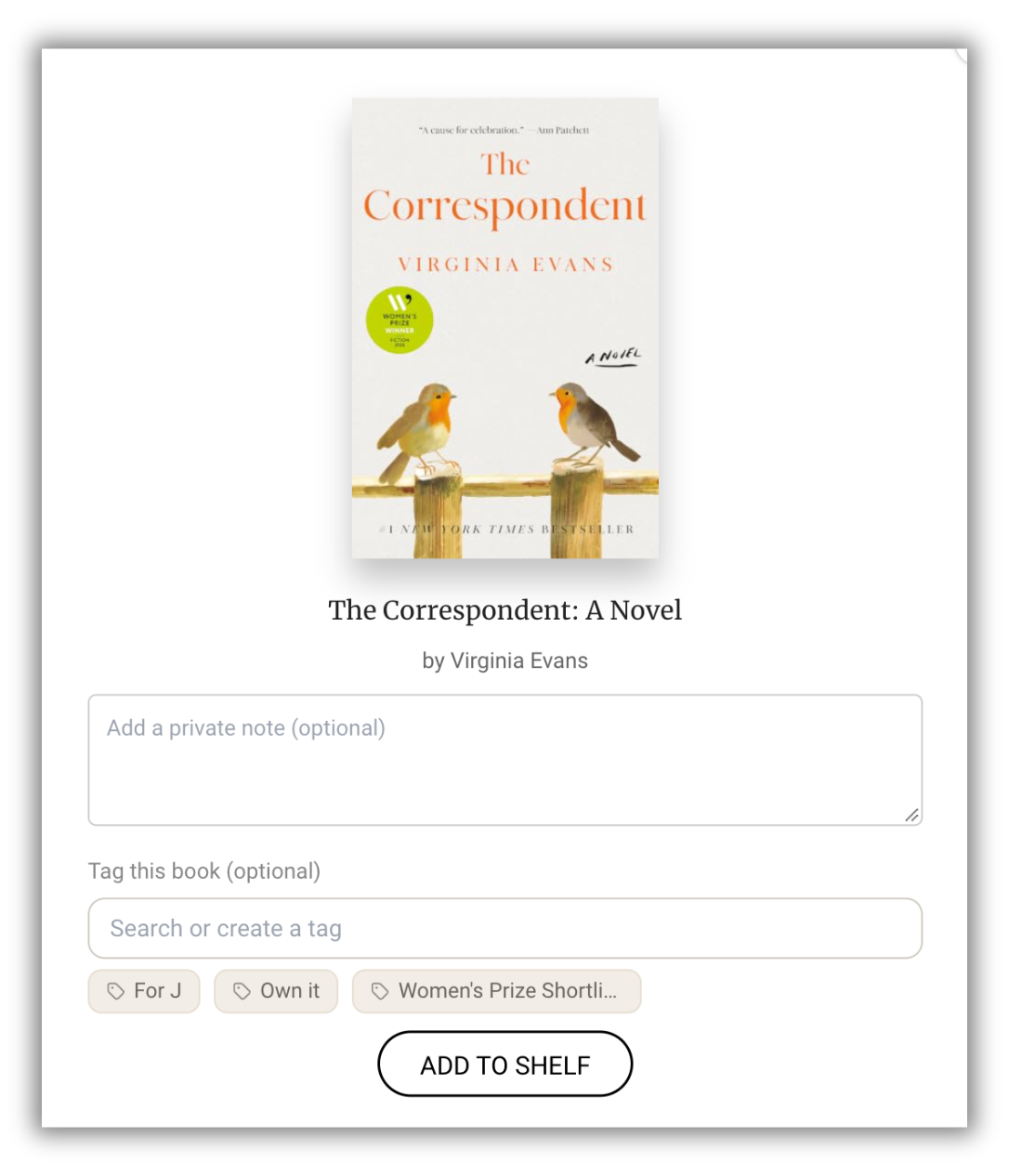
You can tag a book as you add it, too. When you add a book to a shelf from its book page, look for Tag this book (optional) in the window that opens.
To rename or delete tags, click Manage Shelf Tags in the left column of your profile, just below Change Password. Deleting a tag takes it off every book, but the books stay on your shelves.
In the app
- Tap My Books at the bottom of the screen and open any shelf.
- Tap Add tags under a book's title. Check your tags or type a new one and tap Create "[your tag]", then tap Save tags. Tap Edit tags to change them later.
- Tap Filter below the search box, choose your tags, and tap Apply. On Favorite Books and Currently Reading, the Filter button is at the top of the shelf.
When you add a book from its book page with Add to my shelves, you can tag it in the same pop-up. To rename or delete tags, go to the Profile tab and tap Manage shelf tags, or tap Manage tags at the bottom of any book's tag list.
Custom shelf tags are available now on the web and in the app for Bookworm Pulitzer members. Not on Pulitzer yet? See the Bookworm plans.
Custom Tag Ideas
You can create any system you want, but here are some types of tags that may be useful:
- Where you got the book: Use an "Own it" tag to prioritize books you already have on your physical bookshelf. Track books that you borrowed from the library versus purchased versus obtained another way.
- Format: Especially helpful to create an "Audiobook" tag to track books you listened to
- Who recommended it. A "Mom recs" tag, or one named after a podcast, reminds you six months from now why a book is on your list and who to talk to once you finish it.
- A "Maybe" tag for books you're curious about but not sold on, so the ones you're excited about don't get lost.
- Awards and picks: "Booker Prize," "Hugo winners," "Women's Prize shortlist," "Oprah's picks."
- Mood or season, like "Cozy" or "Made me cry."
- "Next in series" and "Not out yet," to keep track of series you've started.
- Diversifying your bookshelf: "Women writers," "BIPOC authors," "LGBTQ+ authors," "Translated." Or keep a tag for each country you've read from.
- Someone who might like the book: A friend's name, when a book sounds like their kind of thing (handy at gift time). Or keep a list of recommendations for each of your kids.
My Order for Your Want to Read Shelf
For that book buried at the bottom of the list, there's My Order. You'll be able to put your Want to Read shelf in any order you like, so the books you're most excited about sit at the top.
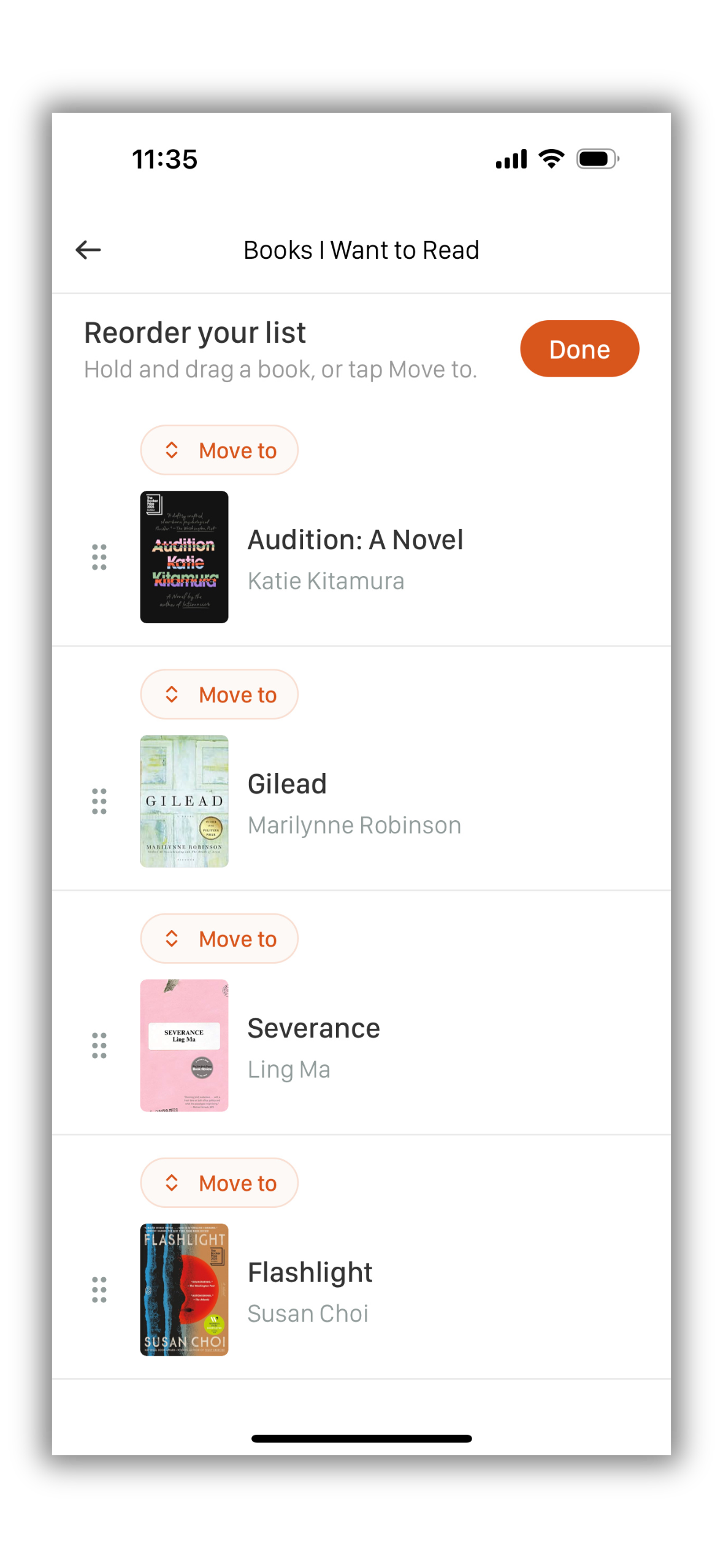
On your Want to Read shelf, switch the sort menu to My Order. Then:
- On the web, click Reorder next to the search box. Drag a book by the handle on its left, or click the arrows on its right to move it to the top, the bottom, or right after another book.
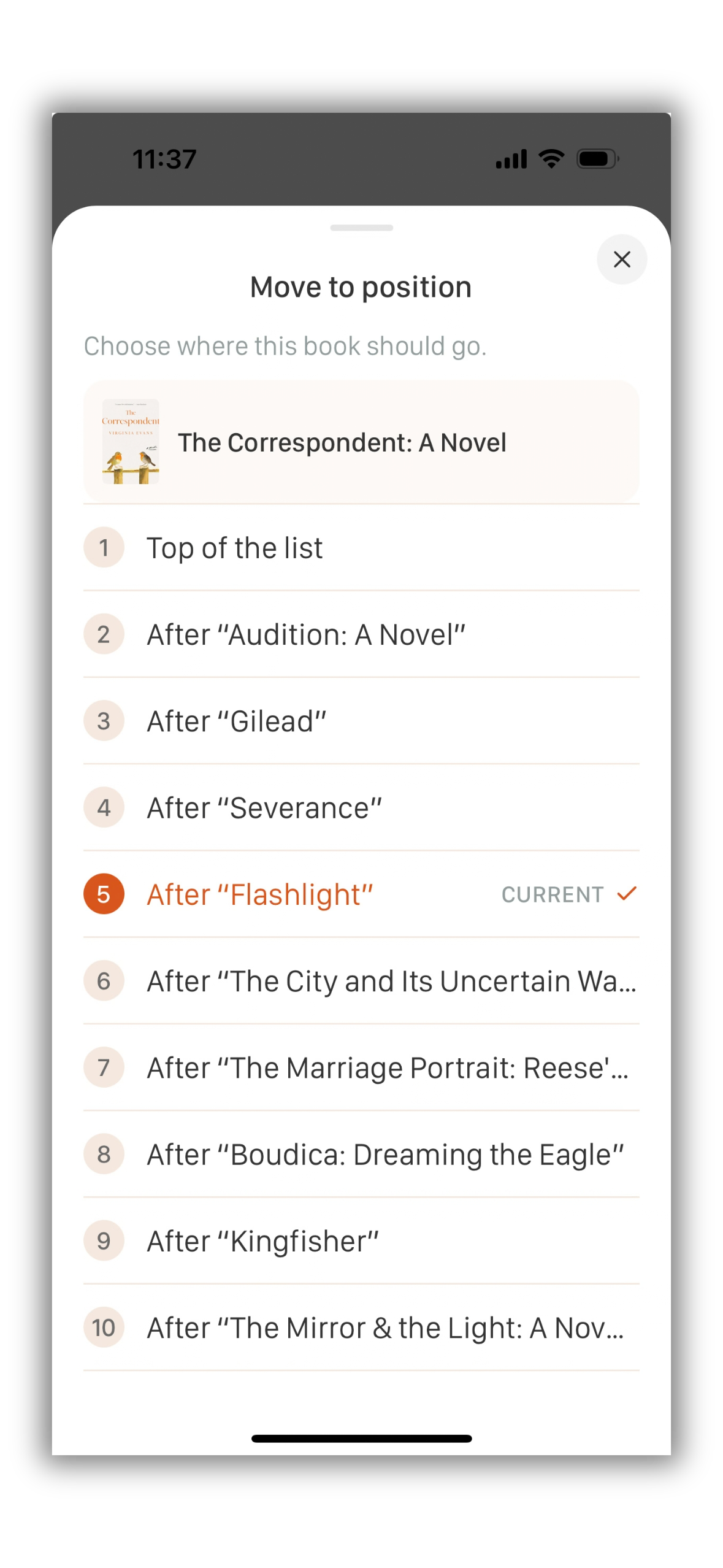
- In the app, press and hold any book. Drag it by its handle, or tap Move to and pick a new spot.
Each change saves as you go, and Done takes you back to your shelf. Once you've set an order, your Want to Read shelf opens in My Order, and new books you add land at the top. Reordering is turned off while you're searching or filtering by tags, since your order covers the whole list.
My Order is now available on the web and the app, also for Bookworm Pulitzer members.
Head to your shelves and create your first tag. 📚
Not a Bookclubs member yet? Join Bookclubs and find or start a book club today.